The interface
Teskooano’s layout is made of dockable panels. Each engine view is a tab with its own camera and its own set of panels, and you can open more views side by side with the + button in the main toolbar.
Main toolbar
Section titled “Main toolbar”
From left to right:
- Teskooano logo: opens this website.
- Plugin Manager: lists the plugins the app has loaded.
- About: the version you are running and the build it came from.
- Restart Tour: runs the guided tour of the interface again.
- Settings: global settings, including the physics mode, the N-body algorithm and integrator, the graphics quality preset and the orbit line style.
- +: adds another engine view.
- Simulation controls: reverse, slower, play or pause, faster, the time scale, the simulated date and the physics mode. See Getting started.
- System controls: the seed, generate from seed, random system, Sol, blank system, import, and once a system is loaded, copy seed, export and clear.
- GitHub and Mastodon links.
On a phone the toolbar scrolls sideways.
Engine toolbar
Section titled “Engine toolbar”
Each engine view has its own floating toolbar in its top left corner. Each button opens a panel over the view, and pressing it again closes it.
Celestial Hierarchy
Section titled “Celestial Hierarchy”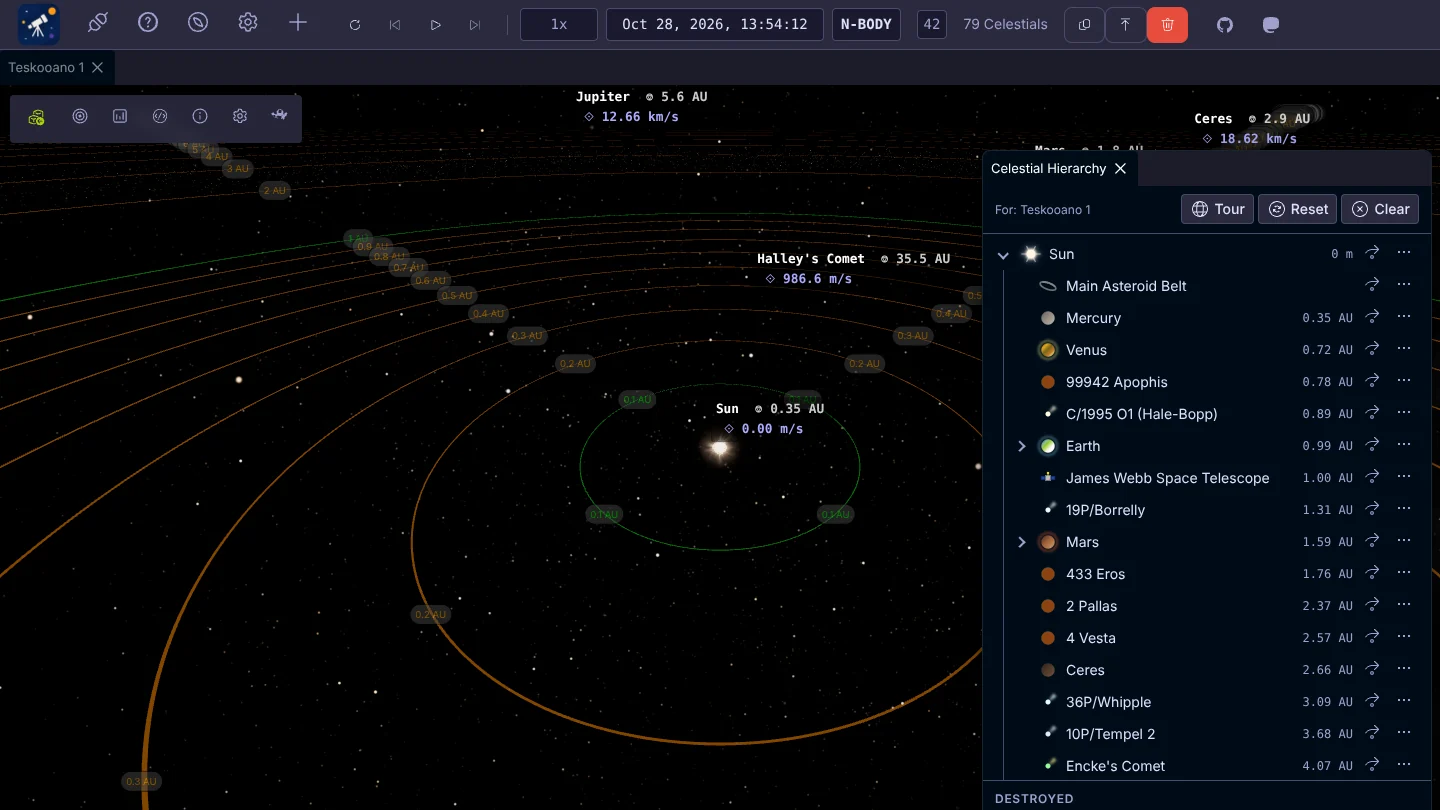
Every body in the system as a tree, with moons under their planets and its distance from the parent. Click a row to fly to it and follow it. The arrow button follows the body, and the ⋯ menu has more actions.
- Tour starts the Grand Tour.
- Reset resets the camera view.
- Clear clears the current focus.
- Bodies destroyed in collisions are listed under Destroyed.
Celestial Info
Section titled “Celestial Info”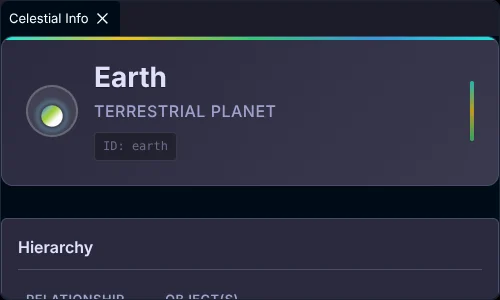
Details about the focused body: its type, its place in the hierarchy, physical properties, orbital mechanics, the gravitational forces acting on it, and the light and shadow sources around it.
Celestial Uniforms Editor
Section titled “Celestial Uniforms Editor”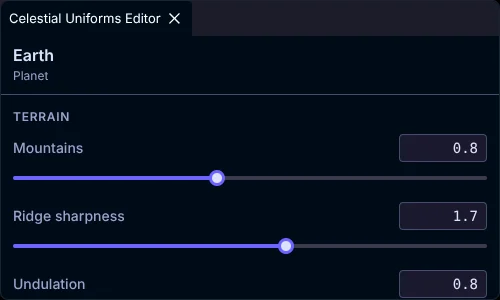
Tweak how the focused body looks. Planets and moons have terrain and geology sliders (mountains, craters, maria, ice fractures, volcanism, ocean coverage, polar caps, cloud deck and more) and re-bake their surface a moment after you stop dragging. Stars have controls that match the shader for their type.
Renderer Info
Section titled “Renderer Info”Device performance, the camera position and field of view, your GPU’s WebGL capabilities, and which performance optimisations are active. Useful when something feels slow.
Engine Settings
Section titled “Engine Settings”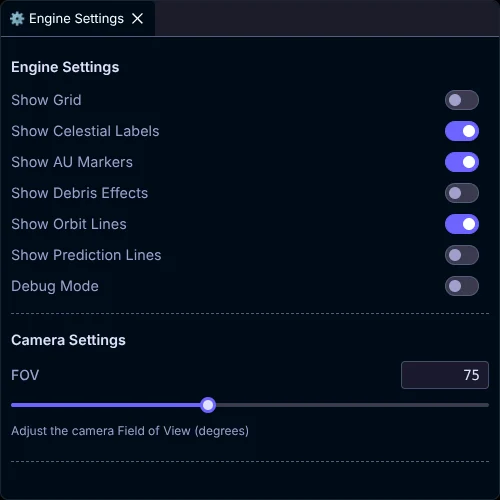
Toggles for the grid, celestial labels, AU markers, debris effects, orbit lines, prediction lines and debug mode, and the camera’s field of view.
System Inspector
Section titled “System Inspector”A developer view of the scene and simulation state, for debugging.