Getting started
Open teskooano.space/teskooano in any modern browser. The first time you visit, a welcome dialog offers a short guided tour of the interface. You can run it again at any time with the Restart Tour button in the main toolbar (hover the buttons to see their names).
Load a system
-
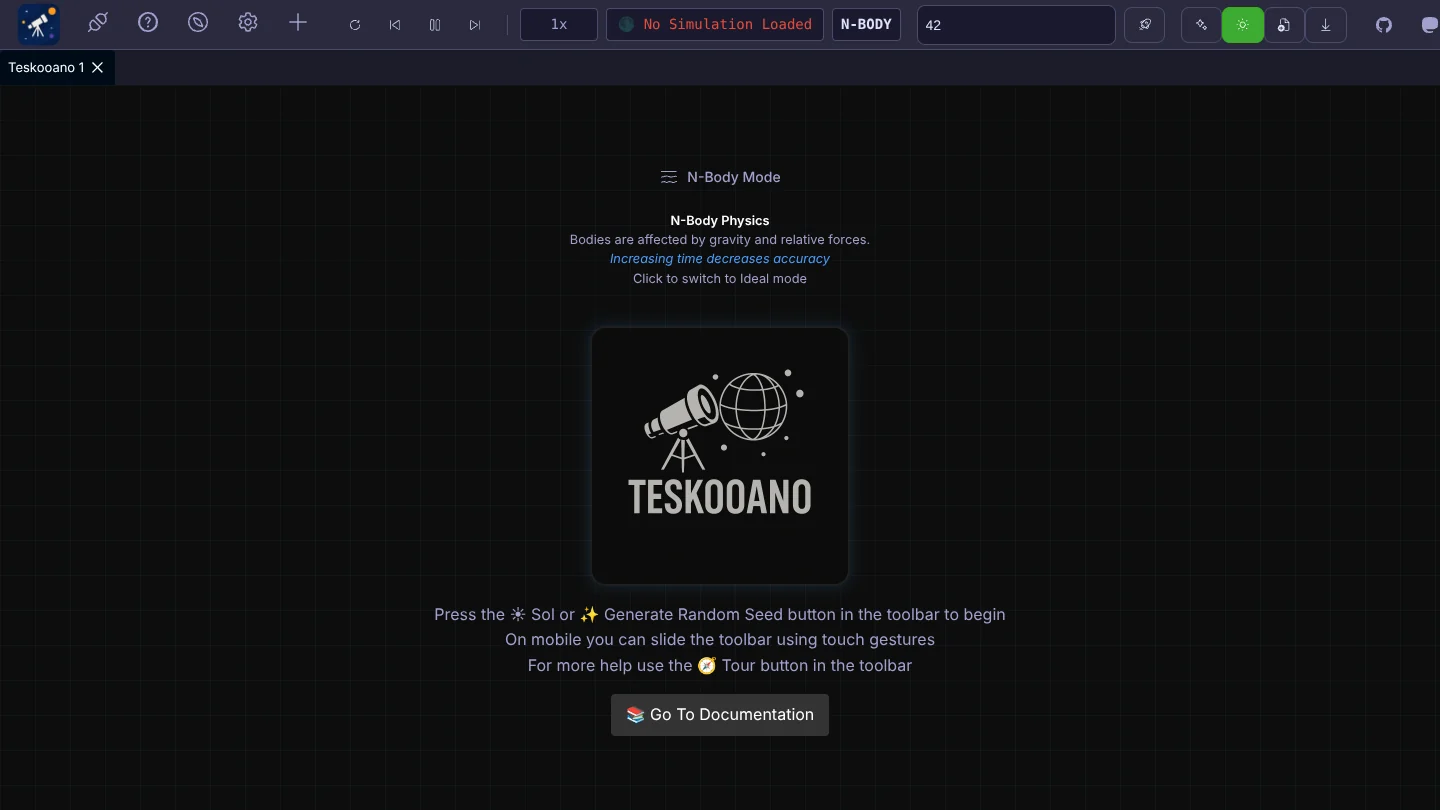
Pick a physics mode. Before a system is loaded, the button in the middle of the view switches between N-Body (every body pulls on every other) and Ideal (bodies follow fixed Kepler orbits). N-Body is the default.
-
Load Sol or generate a system. On the right of the main toolbar:
- ☀️ Load Solar System loads our own Solar System: the Sun, planets and major moons, dwarf planets, asteroids, comets, and satellites such as the ISS and the James Webb Space Telescope.
- Type a seed and press Generate System from Seed to build the same system every time from that seed.
- ✨ Generate Random System picks a random seed for you.
- You can also start a blank system with just a star, or import a system you exported earlier as JSON.
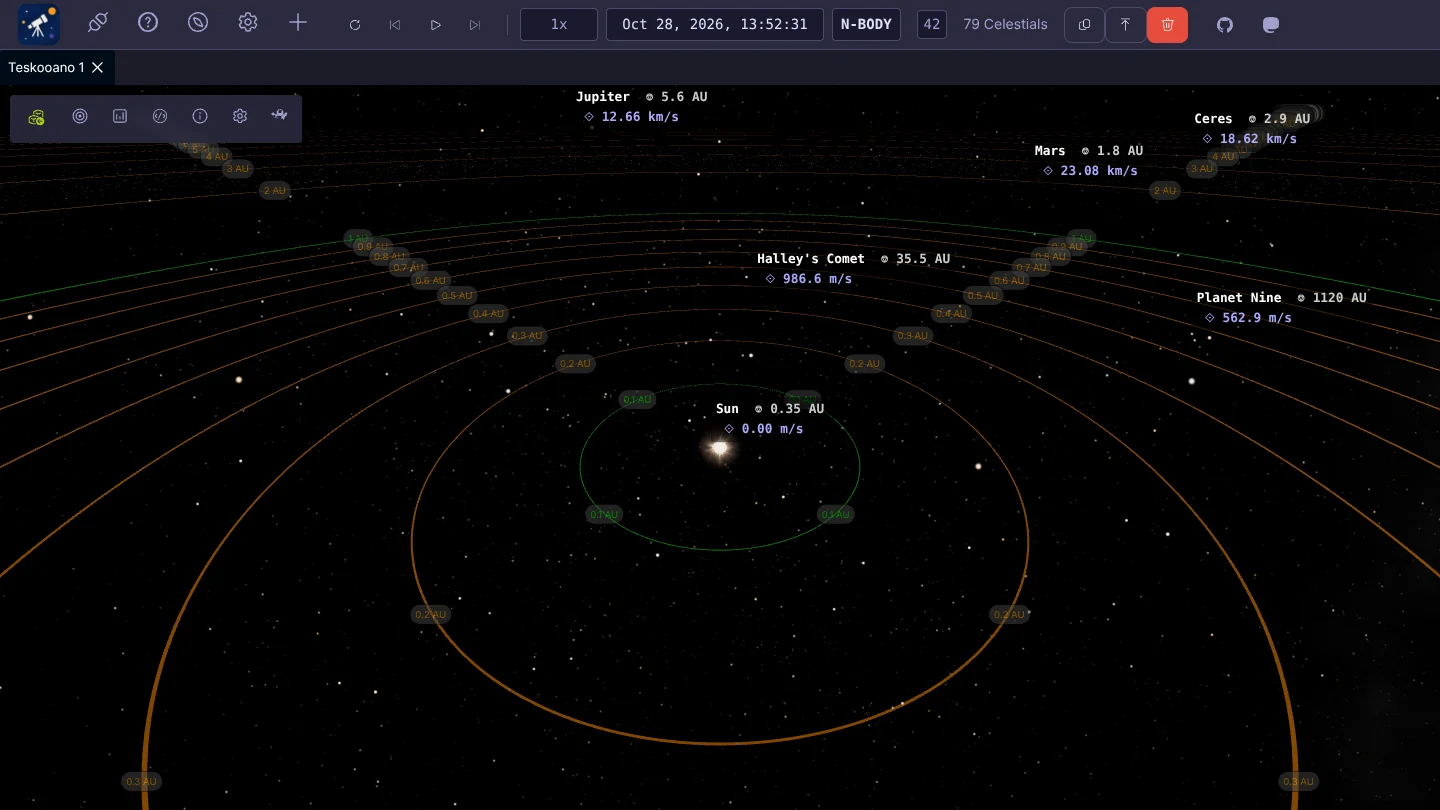
Each body is labelled with its name, its distance from the camera and its speed. The rings around the star are AU markers, and you can turn labels, markers, orbit lines and prediction lines on and off in Engine Settings.
Control time

The simulation controls sit in the middle of the main toolbar:
- Reverse runs time backwards.
- Slower and Faster halve or double the time scale, which is also shown and selectable in the box next to them.
- Play / Pause stops and starts the simulation.
- The date shows the simulated date and time, and the next badge shows the physics mode.
Move the camera
- Drag to orbit around the current focus. On a touch screen, drag with one finger.
- Scroll or pinch to zoom. Zooming speeds up across large distances and slows down as you get close.
- Focus a body from the Celestial Hierarchy panel to fly to it and follow it. You can get right up to small bodies like the ISS.
- Or press Tour in that panel and let the Grand Tour fly you round.
Save and share
The seed box shows the current seed. Use Copy System Seed to share it, or Export System to JSON to save the whole system, including anything you changed in the uniforms editor.